
A practical role
Search for Carpenter or Wheelwright, or try an authored task such as repair wagon wheels. Literal catalogue and task matching helps find a role; it does not interpret any arbitrary request.
Find the people who make the world work.
A wheelwright repairs the wagon. A farrier tends the horses. A crew keeps the estate running. Find people for practical fantasy work, compare their capabilities and plan what it costs to hire them.

Start with the work
Keep the first hiring decision simple, then explore the deeper staffing tools.
Search for Carpenter or Wheelwright, or try an authored task such as repair wagon wheels. Literal catalogue and task matching helps find a role; it does not interpret any arbitrary request.
Compare the candidate’s current work, specialty, availability and pay. A trade name alone is not a promise of advanced skill or willingness to accept your job.
See the roles and quantities a property or project may need. Adjust the composition and inspect the estimates before choosing actual hires.
Keep chosen people and assignments in your account. My Staff separates people, workplaces, crews, contractors, staffing plans and fictional finances.

Define the work
Adventurers speak with a craftsperson beside tools, supplies and a stable. The illustration suggests a useful hiring conversation, not an application screen.
Decide what must be done, which capabilities it needs and what your campaign can afford. For animal work, check the person’s skill stage yourself rather than relying on the animal selection alone.
A deliberate hiring sequence
Open the product on Windows through your VISINVOKE account and Desktop Command Centre.
Use profession, task, animal or browse choices. Refine the query and family when you need more focused results; there is no next-page control for the initial search results.
Read all four capability stages, then compare the Level 1 candidates. Recommended skill in a plan does not change a newly hired person’s starting level.
Select a name or enter your own, choose the employment arrangement and review optional details. Availability and preferred employment are descriptive prompts for your decision.
Hire/save requires Cloud access and the selected product entitlement. Wait for the confirmed response; if Cloud fails, use Retry Cloud before relying on a saved record.
A working fantasy world
Use a focused tool for hiring and staffing rather than rebuilding each worker by hand.
Search profession names, aliases and authored tasks, or browse families and animal-related roles. Compare the actual capability, not just the occupation label; refine your search when the first results do not contain the role you need.
Generate four candidates with a specialty, availability, hiring cost and weekly pay. Review their capability and optional background before choosing a name and saving a hire to your account.
Choose from several name options, request More Names or enter a custom name. Name changes keep the candidate’s other details; use a different seed when you want a different candidate set.
Choose a built-in property, scale and optional facilities, then build a role plan with quantities, recommended levels and cost estimates. Review the facilities for your setting; a plan does not automatically hire staff.
Prepare bridge repair, harvest, caravan and other job-based crews. Adjust role quantities and compare costs before hiring people, assigning existing staff or saving a workforce representation.
Every new candidate starts at Level 1. Pay explicit upgrade costs to move the same person through four capability levels, without XP, training periods or an automatic campaign calendar.
Use My Staff to inspect people, workplaces, crews, plans and finances. Reassign a primary workplace or record an additional duty without creating another person or a duplicate weekly wage.
Keep hiring costs, weekly pay and advancement spend separate. Calculate periods and manually record a payment in copper pieces; real subscription charges are separate from these fantasy costs.
Four ways into the work
Choose the workspace that matches the task.
Look up a trade or practical task and inspect candidates. Magic profiles range from No Magic to High Magic and filter built-in profession choices.
Choose the property, scale and optional facilities. Add lodging or food service where it suits the operation, then inspect the combined role requirements.
Choose a job and scale, then adjust quantities. Bridge repair, for example, combines carpentry, masonry, labour, transport and specialist bridge work.
Review saved people and plans, inspect crews and workplaces, and calculate fictional payroll. START HERE and HELP explain the current controls and concepts.

People and work in context
A wagon is being repaired while companions review a map in a busy working quarter. The illustration brings a practical job and its workers together.
The useful result is a reviewed candidate or staffing plan: profession, capability, quantities, costs and the decisions you still need to make. It is not an automatically completed project or a generated image.
Keep plans and hires distinct
A recommended role is a starting point for your own staffing judgement.
Changing scale, facilities or magic does not update an existing result until you choose Build or Rebuild. Inspect the newly calculated quantities before saving.
Updating a staffing plan recreates its role rows and resets their hiring and assignment counts. Check filled positions against your people after saving changes.
The assignment tools match profession and active status; they do not enforce the plan’s recommended level. Verify the person’s actual capability yourself.
A dismissal or archived workplace does not automatically reconcile every crew roster or plan count. Check those records separately from active payroll.
Use the right representation
Choose how much individual detail the campaign needs.
Save Crew / Workforce from a small builder result creates an empty planned crew. It does not generate and hire each named member automatically.
Saving an aggregate workforce makes it active and its anonymous roles count toward weekly payroll. This is different from saving a hypothetical staffing plan.
An existing matching hire can fill an anonymous workforce slot. A fresh hire records its own hiring cost and wage, so review the resulting costs rather than assuming they stay identical.
Professionals & Trades is a standalone fantasy staffing tool. It has no direct Combat PRO handoff, automatic project completion or real-world employment and payment service.
Choose access for your toolkit
Begin with a free VISINVOKE account, then review the selection and subscription you require.
Select Professionals & Trades individually. A free account does not by itself include paid generator access.
Choose five eligible standalone generators for your toolkit. The selection pack does not include every VISINVOKE product.
Choose more selection capacity when it fits your use. Review current options and reselection terms in your account before changing a subscription.
Copper-piece hiring and payroll values belong to your campaign. They are separate from real US-dollar subscription charges and do not transfer actual money.

Pay explicit costs to move the same saved person from Level 1 to Level 4. Capabilities change; the current weekly wage does not increase. No XP or training period is required.
Use weekly, monthly, annual and period estimates. Record a payment manually and reverse a recorded payment when needed; no automatic campaign clock advances.
The finance summary uses the latest 500 transactions. Keep your own complete campaign history when you need totals beyond that recent window.
The player-facing projection is inside the DM workspace, alongside other private details. Review public notes and share only the intended fields; there is no dedicated export or player-delivery control.
Cloud saving has no offline fallback. After a version conflict, use Retry Cloud to reload before deciding what to save again. Custom profession definitions are saved separately and do not appear in built-in candidate search.
Continue your tabletop preparation
Each card opens its own public website. Review purpose and access separately; links do not promise included access or automatic synchronisation.

Discover and open your supported Windows products through one connected VISINVOKE account.

Explore environment packs for the workplaces, roads and expedition locations your campaign visits.
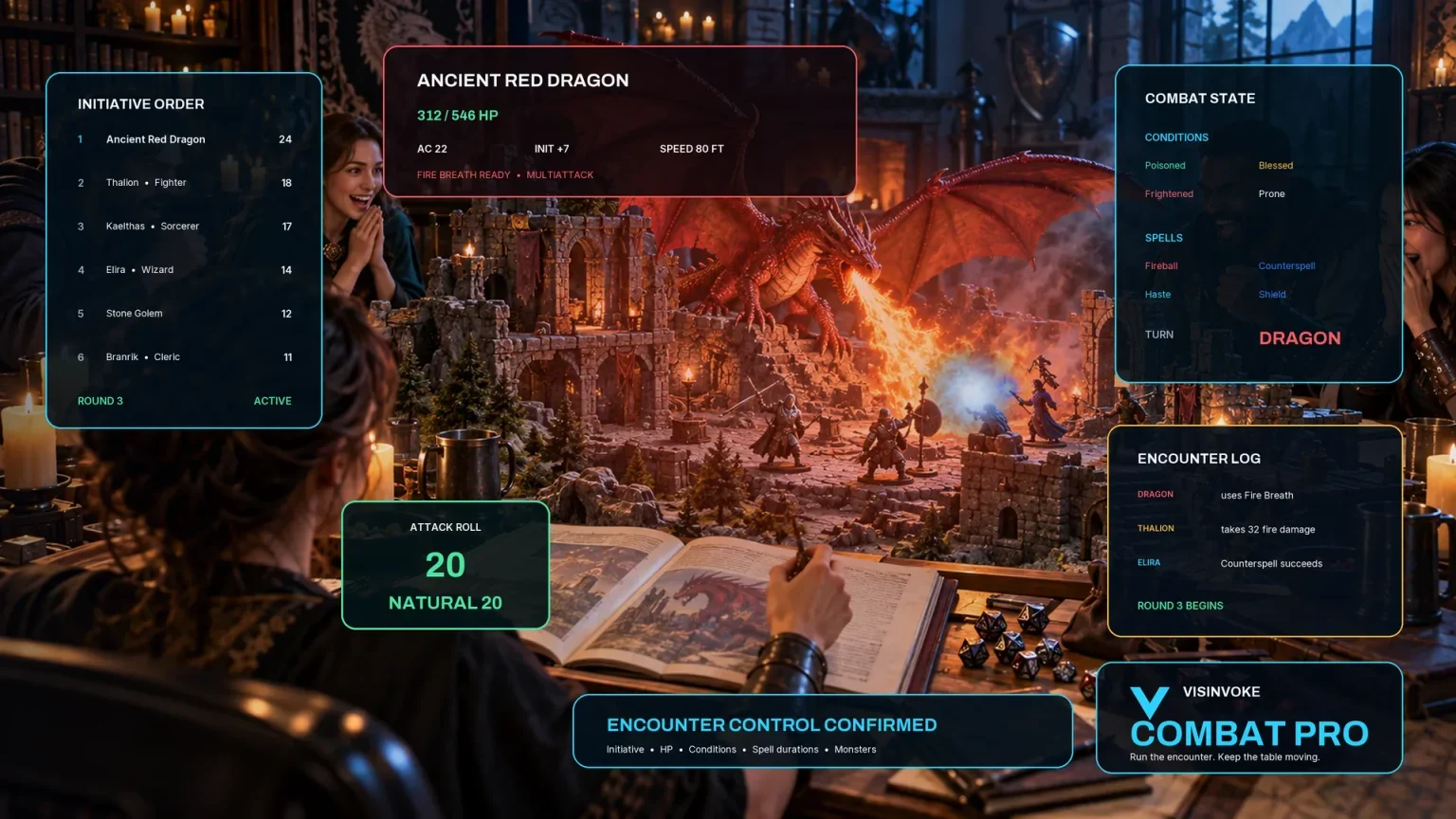
Prepare and run tabletop encounters in a separate product with its own access. Professionals & Trades does not send staff directly into it.

Create fantasy character, creature, item and location imagery for your tabletop preparation.

Create guided commercial visuals for websites, brochures and other creative projects.

Explore a separate futuristic RPG world with its own characters, rules and progression.
Product artwork illustrates fantasy professions and practical work, not application screens or actual generated image output.
Quick answers
Know what is planned, what is paid and what still needs your judgement.
No. Built-in property and crew plans show quantities, recommended levels and estimates. New hires still begin at Level 1, even when a plan recommends a higher level. Choose hires or assignments explicitly and check each person’s actual skill yourself. Saving a small named crew from the builder creates an empty planned crew; saving a large aggregate workforce creates an active crew whose anonymous roles count toward weekly payroll.
The same seed and choices produce the same four candidates, including when the seed is left blank. Generate again with unchanged choices repeats that set. Change the seed to vary the people; More Names and naming style change name choices without changing capability, wages or other details. Check any DM notes after renaming, because existing name references in those notes can remain unchanged.
No. The selected magic profile filters built-in profession search and plans, but an animal selection does not automatically enforce the animal’s required skill or magic level when candidates are created. All candidates begin at Level 1. Read the profession’s four capability stages and decide whether the individual can perform the task in your setting. Custom plans also need your own magic suitability review.
Hires, workplaces, staffing plans, crews and custom definitions use your entitled VISINVOKE account. Local discovery can continue when Cloud saving is unavailable, but there is no offline saving fallback. The current interface has no dedicated copy, download, print or structured roster export. The player-facing projection sits within the DM workspace: review public notes and share only those fields, not a screenshot of the whole person window.
Hiring records a one-time cost and an ongoing weekly wage. Paid advancement changes the same person’s level and capability; it does not increase their current weekly wage. Leave, unavailability and death pause individual payroll, and dismissal ends it. Payments record an amount you choose for a period, with a reversal action for a recorded payment. There is no automatic campaign clock or actual money transfer. The finance summary uses the latest 500 transactions, so retain your own complete history for a long campaign.
You can save and archive custom profession definitions with four distinct capability stages and explicit hiring, wage and upgrade costs. Those definitions are not available in the current built-in candidate search or generation interface. Custom property and crew composers use built-in profession roles with quantities and scales. Review magic suitability and advancement costs separately; a saved duration or leadership note does not run a project schedule.
Continue in VISINVOKE
Create a free VISINVOKE account and choose the required standalone generator access.
Get Desktop Command Centre from your account installer page. Sign in on Windows, then open Professionals & Trades.